User Input#
- Data Entry
Data Entry boxes are standardised throughout System Optimiser, and look like this:
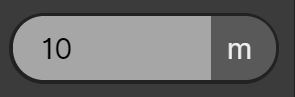
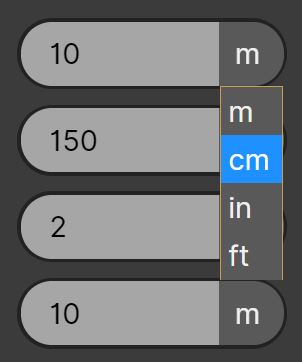
Clicking the mouse inside the box and scrolling will increase or decrease the value within. On fields with selectable units, clicking the ‘Units’ selector on the right-hand side of the Data Entry box will display any applicable units which can be used for entering data. This will not change any units globally, as this must be done through the Application Settings. Fields with a fixed unit (such as dB) show a static unit label instead.
- Tick & Cross
Clicking a green ‘tick’ is used to confirm an action. Clicking a red ‘Cross’ is used to discard any changes made, or cancel an action. In any dialog, Ctrl+Enter confirms and Escape cancels, from the keyboard.


- Edit Pencil
A green ‘Edit Pencil’ is used to edit the parameters of an item, for example, a Control Group. (Sources and layers no longer have an Edit Pencil - select them to show them in the Edit Source or Edit Layer Panel.)

- Delete
A red ‘trash bin’ is used to delete an item from a list, for example, a point within a Free Plane.

- Crosshairs
Green ‘Crosshairs’ are used for positioning objects, such as Microphones. First, click the ‘Crosshairs’ for the object you wish to place, then click again in the 3D View to place the object.
