
Venue Database#
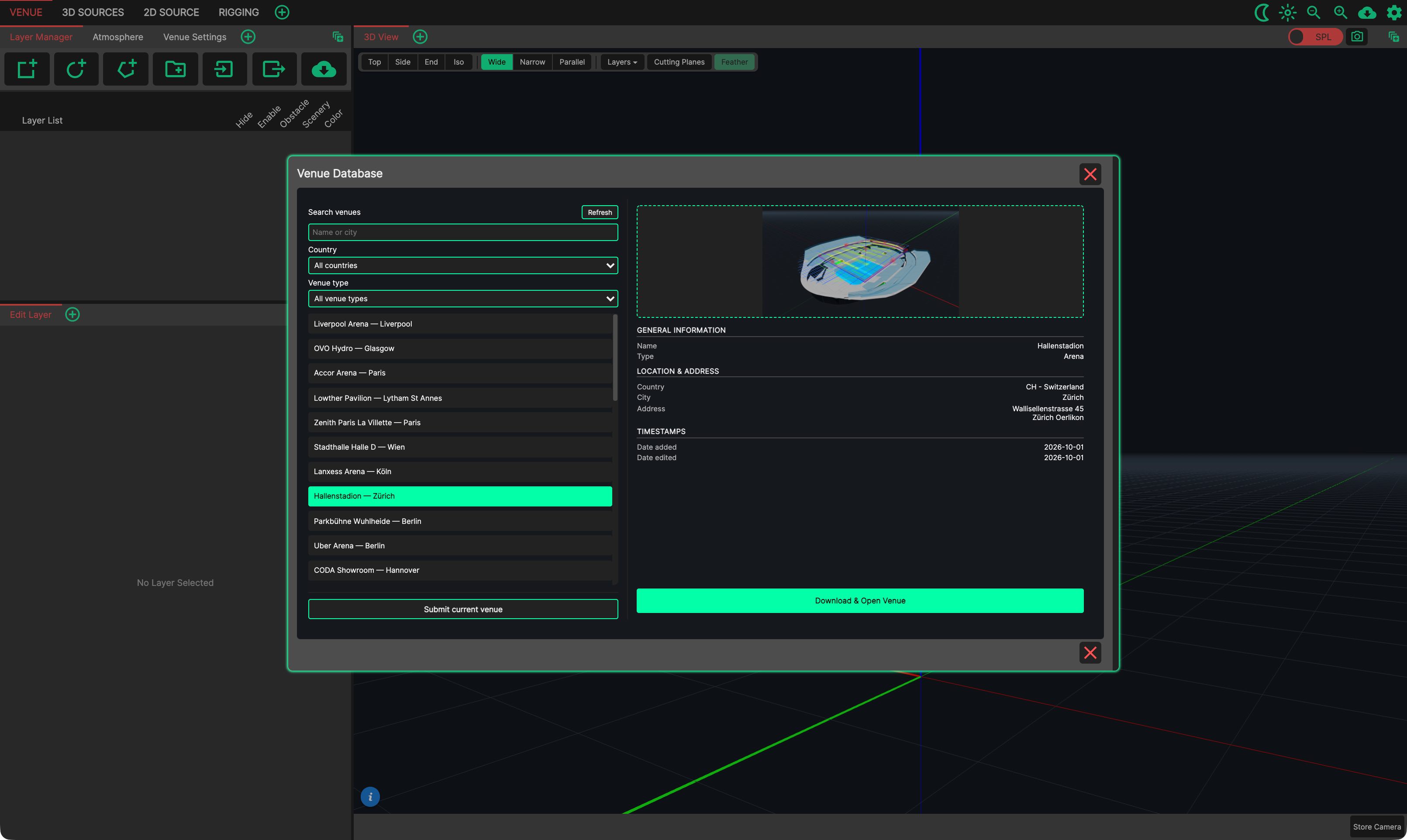
The Venue Database is a shared library of venues drawn in System Optimiser. Instead of drawing a venue from scratch, check whether another user has already drawn it, download it into your project, and start designing straight away. When you have drawn a venue yourself, you can submit it so that others can use it too.
An internet connection is required.
- Opening the Venue Database
From the application menu: Files → Venue Database.
From the Layer Manager: the last button (the cloud) on its top bar.
Finding a Venue#
The left side of the Venue Database lists every venue available.
Search venues - type part of a venue’s name, one of its alternative names, or its city.
Country - show only the venues in one country.
Venue type - show only one type of venue: Arena, Theater, Open Air, Concert Hall, Stadium or Custom.
Refresh - reload the list from the database.
Click a venue in the list to show its details on the right:
Preview images - use the arrows to step through them, and click an image to open it larger. The enlarged image can be zoomed and scrolled.
General Information - the venue’s name, type and any alternative names.
Location & Address - country, city and address.
Comments & Rigging - general comments, the load-in address, load-in comments and rigging comments, where the author provided them.
Timestamps - when the venue was added and last edited.
Downloading a Venue#
Click Download & Open Venue. The venue’s layers are added to the current project, in the same way as importing a Layer File in the Layer Manager, and the Venue Database closes.
The layers are added to any layers already in the project - start a new project first if you want the downloaded venue on its own. If ‘Annotate Copied Layer Names’ is on in the Preferences, ‘ - Imported’ is added to their names.
Note
Venues in the database are drawn by System Optimiser users. Always check the geometry against drawings or measurements of the real venue before relying on it for a system design.
Submitting a Venue#
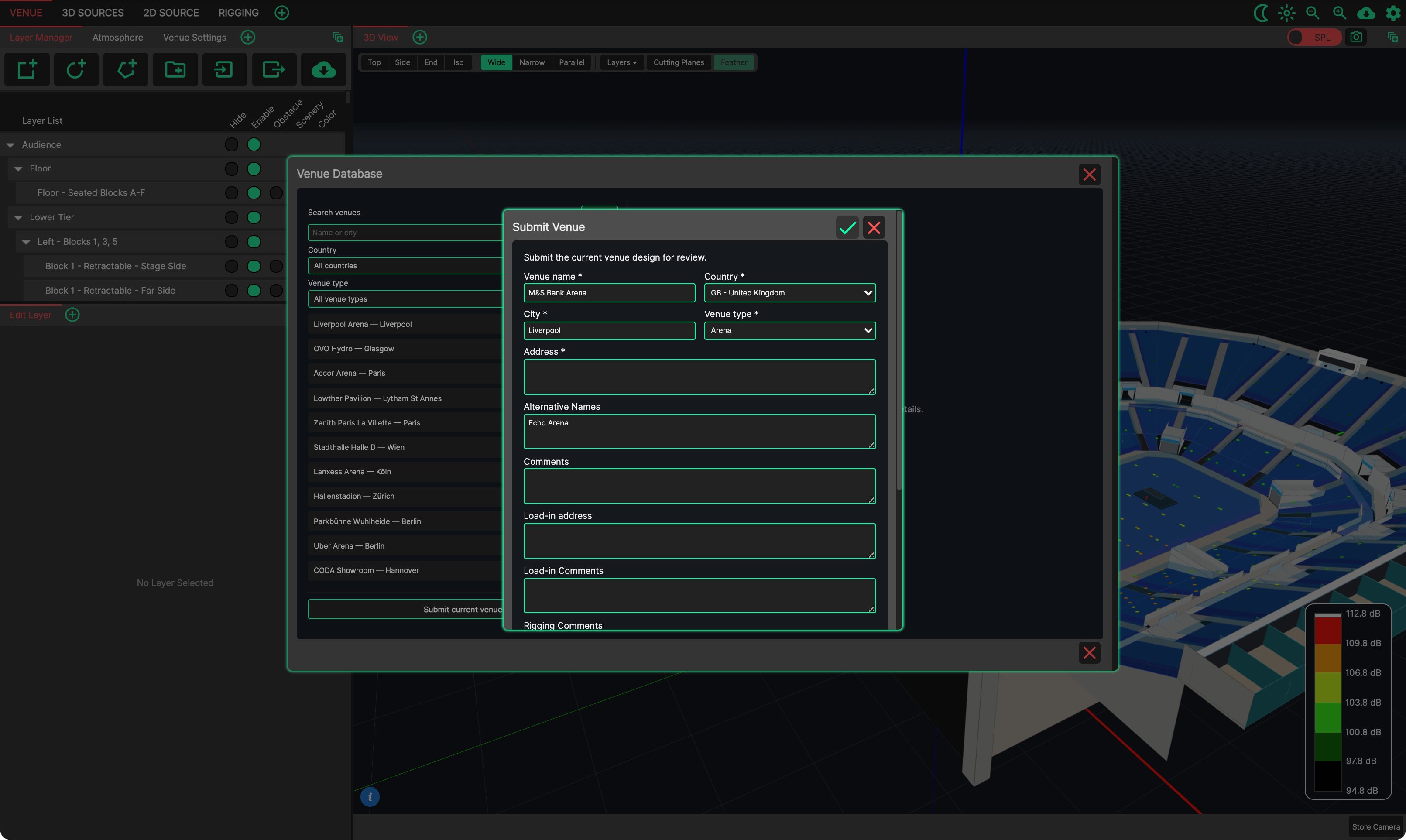
To share the venue in your current project, click Submit current venue at the bottom of the venue list. Every layer in the project is submitted, so remove anything that should not be shared first. Loudspeaker sources are never submitted.
Fill in the form:
Required: Venue name, Country, City, Venue type, Address and a Contact email. The email is only used while your submission is being reviewed.
Optional: Alternative Names (other names the venue is known by, which can be searched), Comments, Load-in address, Load-in Comments, Rigging Comments, Author, and Preview images (select one or more image files).
Confirm with the green ‘tick’, which is available once all the required fields are filled in. Submitted venues go to a review queue, and appear in the Venue Database once they have been approved.