
Source Manager (Panel)#
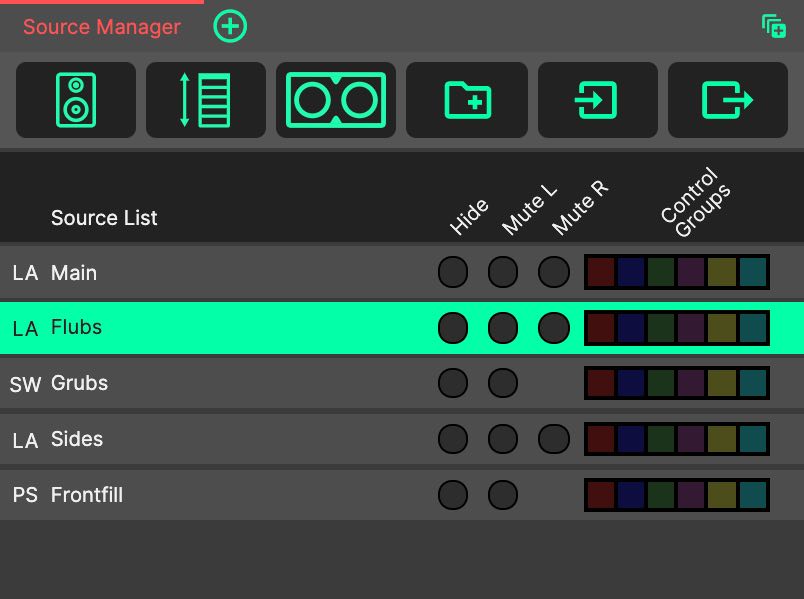
The Source Manager organises all loudspeaker sources within a system design file.
- Creating Sources
Sources are created using the first three buttons in the Source Manager’s top bar. From left to right, these will create a new Horizontal Point Source Array, a new Standard Vertical Array, and a new Horizontal Subwoofer Array. Once created, the new sources join the bottom of the list.
See each source type page for information on how to manipulate them.
- Selecting and Editing Sources
Click a source’s row to select it. The selected source is shown in the Edit Source Panel, where all of its parameters can be changed, and is followed by the Sideview and its companion panels. Click the same row again to cycle through its sub-sources (e.g. L then R of a stereo array). Click the empty area below the list to clear the selection.
- Source Groups
Source groups also appear in the Source Manager’s list, and are a way to manipulate many sources at once. Click a group’s name to show the group in the Edit Source Panel, and click the arrow to its left to expand or collapse it. The checkbox in a group’s ‘Mute L’ column mutes every source inside the group, without changing the sources’ own mute settings. Sources muted by a group or by a Control Group are dimmed; hover over the row to see why. For more information, see the page about Source Groups.
- Source Properties
Sources (and Source Groups) can have attributes applied from the Source Manager by clicking the round, green toggle for each property. For information about the job roles of these properties, see the page about Source Properties.
As with all Panels, the Source Manager Panel can be resized and moved using Panel Drag & Drop, and ‘popped out’ into an additional System Optimiser window. The location of this Panel will be saved as part of the current tab.