
Edit Source (Panel)#
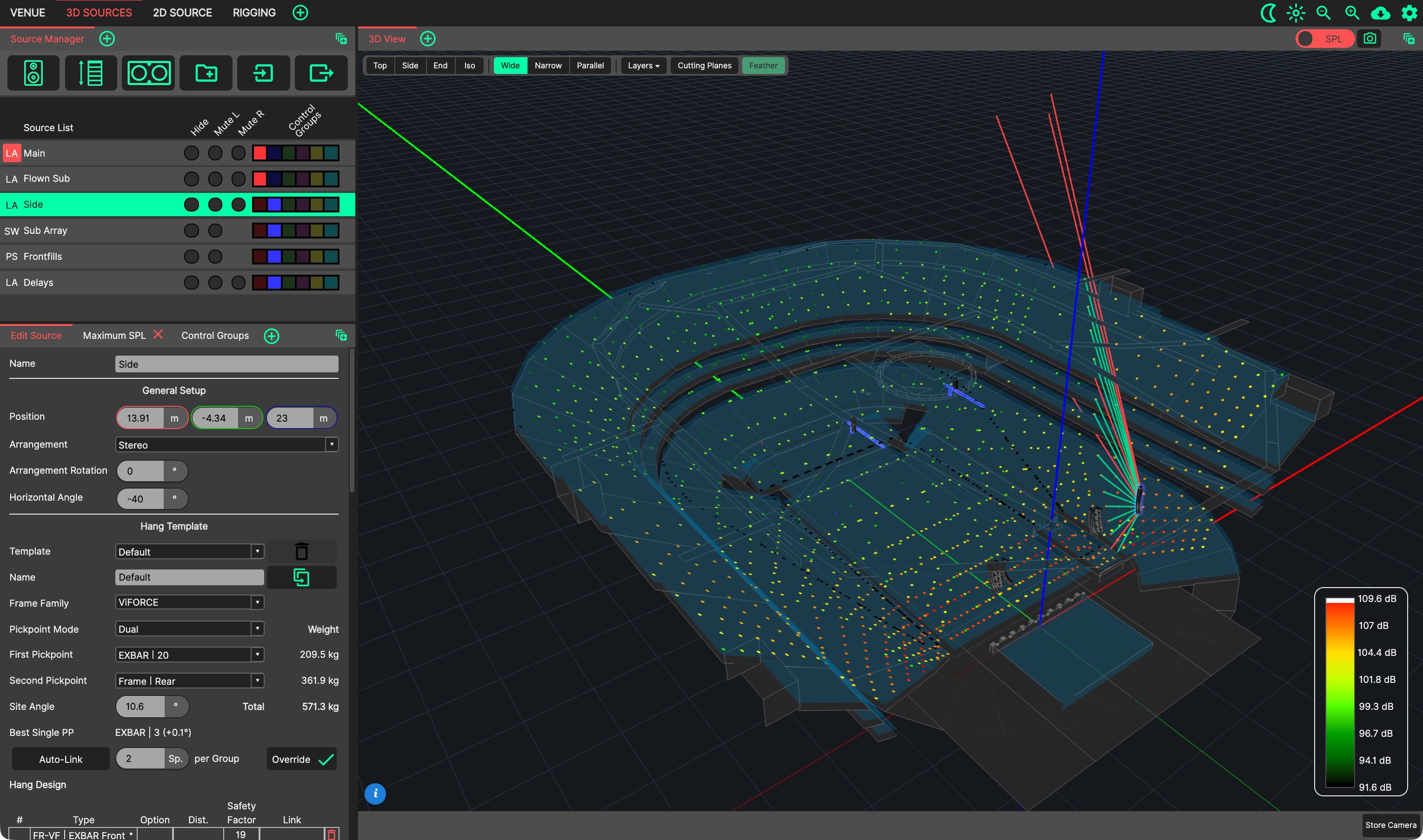
The Edit Source Panel shows the Source Controller of the selected source, or the settings of the selected Source Group, and is where all of their parameters are changed. It replaces the pop-up source editor of earlier versions of System Optimiser.
- What it Shows
The panel follows the selection:
Click a source in the Source Manager, or the 3D View, to show its controller.
Click a group’s name in the Source Manager to show the group’s position offset and gain / delay deltas.
A newly created source or group is shown straight away.
When nothing is selected, the panel reads ‘No Source Selected’.
- Live Editing
Every change takes effect immediately - in the 3D View, the Sideview and every other panel.
The Edit Source Panel is part of the default 3D SOURCES and 2D SOURCE layouts, as the first tab of the lower-left panel stack, and cannot be closed there. It can be opened from the panel add menu in a custom tab. Only one Edit Source Panel can be open per tab.
Note
Tabs whose layout was saved with an earlier version of System Optimiser do not show the new panel until the tab is reset (right-click the tab and choose ‘Reset View’), or the panel is added from the panel add menu.
As with all Panels, the Edit Source Panel can be resized and moved using Panel Drag & Drop, and ‘popped out’ into an additional System Optimiser window. The location of this Panel will be saved as part of the current tab.