
Custom Tabs#
Creating a custom tab is possible with System Optimiser, allowing for highly-optimised workflows to be achieved. This enables System Optimiser to scale to multiple physical displays. Combined with Custom Colour Schemes and Colour Maps, layouts can be tailored to the individual needs of users with different requirements.
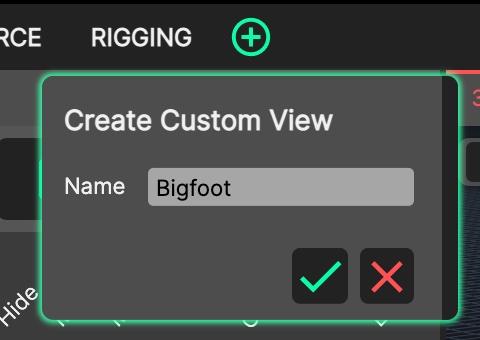
To create a custom tab, click the ‘Plus’ at the end of the tab bar. A ‘Create Custom View’ dialog opens - give your new tab a name (names are mandatory and must be unique) and confirm. The new custom tab appears as a clone of the tab you were on when you pressed ‘Plus’, with every panel made closable.
Use Panel Drag & Drop to rearrange Panels to suit individual workflows. A custom tab can hold up to four 3D Views, each with its own mapping - for example the SPL heat map in one and Tonal Mapping in another. New Panels can be opened with the green ‘Plus’ at the top-right of each window, or by opening the Quick Command Line. As with the fixed tabs, these positions are recalled when selected. Positions of any additional windows will also be saved as part of the custom tab.
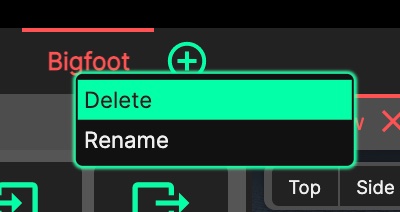
Custom tabs can be removed or renamed by right-clicking and selecting ‘Delete’ or ‘Rename’. Right-clicking one of the fixed tabs offers ‘Reset View’ instead, which restores that tab’s default layout.